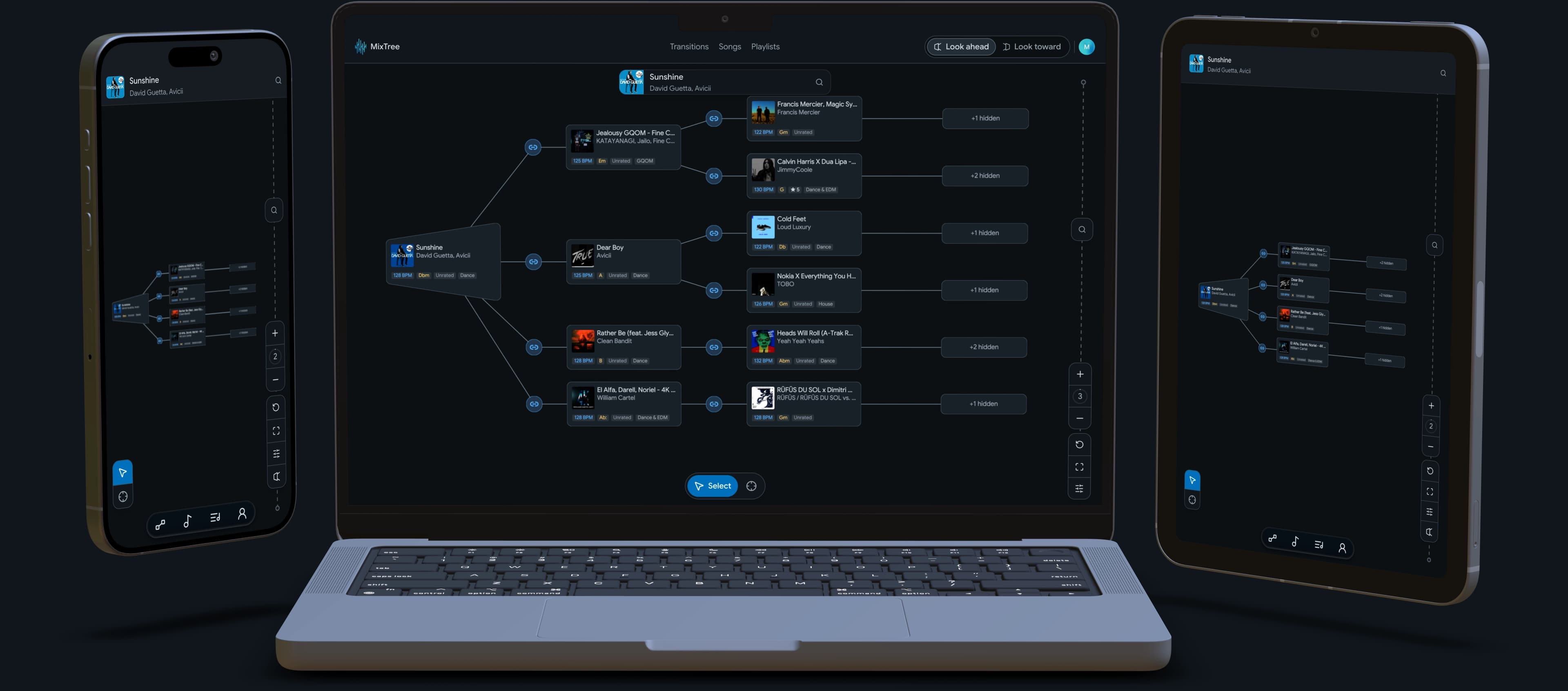
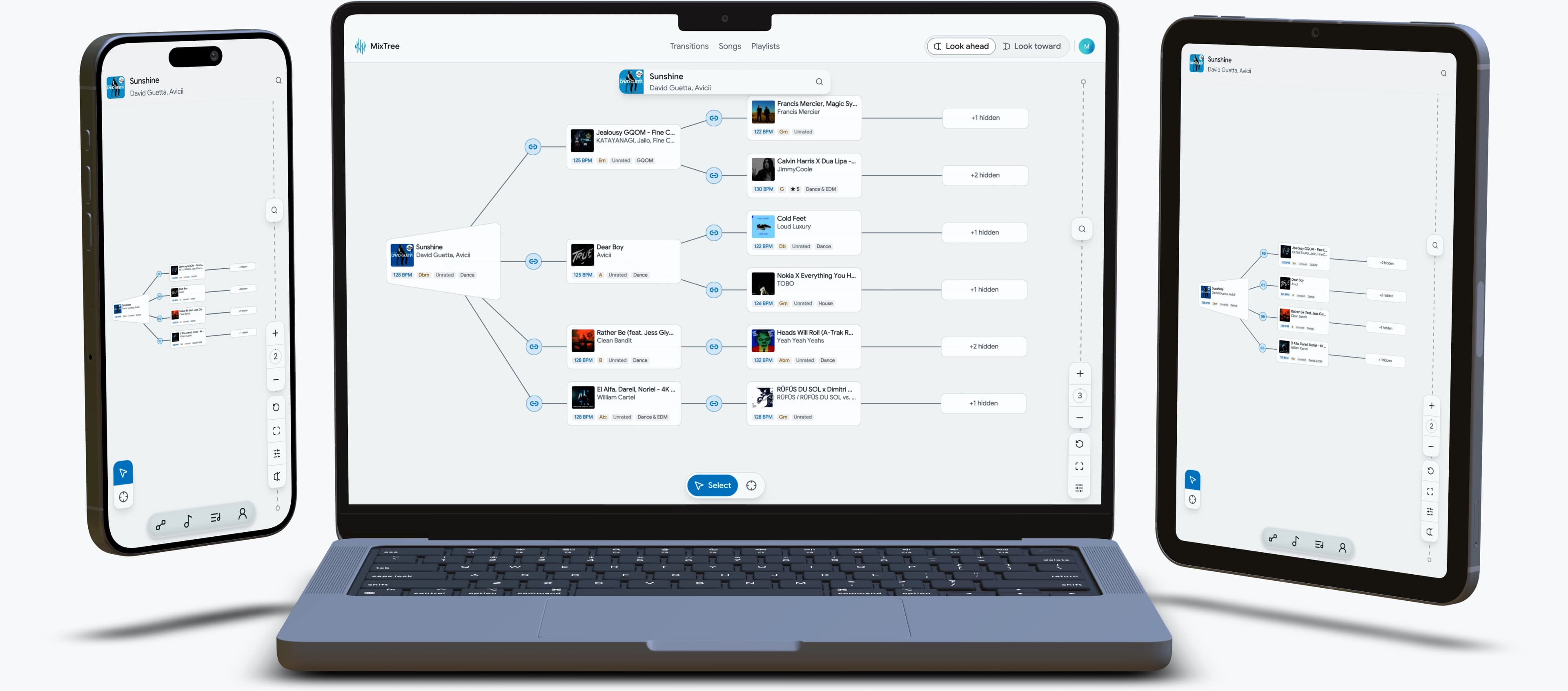
Build better DJ sets, your way.
No AI. No suggestions.
Mind maps for DJs. Organize your song library, map transitions, and see the shape of a set before you play it.

A guided journey through the real product
Tap to start the guided tour (best in landscape).Scroll to progress. Each step highlights a real interaction, then opens into a playground.
- Step 01Understand DescendantsDescendants is the forward map. It shows every track that can play after the current root song.Why this matters
- This is where you build momentum and discover valid next moves.
- Each branch represents explicit transition paths, not guesses.
Try this now- Click a non-root song card to hide that branch.
- Click a +N hidden card to reopen it.
- Step 02Validate with AncestorsAncestors is the backward map. It shows tracks that can lead into the current target song.Why this matters
- Use it to confirm your target is reachable from multiple directions.
- Strong inbound options make safer pivots during a set.
Try this now- Collapse one inbound branch, then reopen it.
- Compare two different routes that end at the same target.
- Step 03Read Distance with Depth IndicatorsDepth indicators add distance badges on descendants cards so you can compare route length quickly.Why this matters
- The badge number is the count of transitions needed to reach the current target root.
- Lower counts usually mean a shorter path to your destination.
Try this now- Find a branch with a low badge count.
- Compare it with a branch that has a higher count.
- Step 04Preview Before You CommitPreview lets you audition tracks directly from the graph while keeping route context.Why this matters
- Fast audio checks help you reject weak options early.
- Preview playback continues while you keep working in the graph.
Try this now- Click play on any card that shows a preview button.
- Continue exploring while the preview keeps playing.
- Step 05Add TransitionsAdd creates new transitions so you can test ideas instead of only inspecting existing routes.Why this matters
- You can connect to an existing library song or create a new song.
- This is how MixTree turns a route idea into graph structure.
Try this now- With Add active, click a song card to open the add menu.
- Pick a library song or search SoundCloud, then create the transition.
- Step 06Mark Candidate Paths with HighlightHighlight marks the path you are evaluating so route review stays clear.Why this matters
- Highlight is visual only and does not change song or transition data.
- It marks one path instance, not every copy of the same song.
Try this now- With Highlight active, click a node to mark its path.
- Click the same node again to clear the highlight.
- Step 07Isolate a Route with SoloSolo isolates one candidate chain so you can validate it without unrelated branches.Why this matters
- Solo removes visual noise and keeps attention on one route.
- Use it before committing a route to playlist creation.
Try this now- With Solo active, click a destination node to isolate that chain.
- Click the same node again to return to the full graph.
- Step 08Create a Playlist from SoloConvert a soloed chain into a playlist action from the toolbar.Why this matters
- This links route validation to playlist creation in one flow.
- In demo mode, the action confirms with a toast and does not persist data.
Try this now- Solo a chain.
- Click the playlist action in the toolbar.
- Step 09Control Scope with DepthDepth controls how much of the tree is visible so large graphs stay readable.Why this matters
- Increase depth to reveal more layers.
- Decrease depth to focus on the part you are deciding on.
Try this now- Use depth plus and minus in the toolbar.
- Use Fit to view after changing depth.
- UnlockedPlayground modeBest experienced in fullscreen. Fullscreen unlocks left and right song rails for fast root switching while you build routes.Why this matters
- Fullscreen adds both song rails so you can switch roots on each side without leaving the graph.
- This mirrors real planning in MixTree from exploration to route validation.
- Demo actions are local and are not saved.
Try this now- Open Fullscreen from the demo header first.
- Switch roots from the song rails, then run Add, Highlight, Solo, and playlist.
Keyboard shortcuts- SpaceCollapse tool
- AAdd tool
- HHighlight tool
- SSolo tool
- -Depth down
- +Depth up
- [Toggle left song rail
- ]Toggle right song rail
- 0Collapse all nodes
- FFit to view
Built for how you actually DJ
No AI. No suggestions. Just a workspace that makes your creative decisions easier to see and act on.
Prep with confidence
See every route you've built between tracks before the gig. Walk in with a plan and the freedom to go off-script.
Your graph, your knowledge
Every connection is a transition you mapped. MixTree helps you see the full picture, including multi-hop paths you might not have noticed.
Built by you, over time
No suggestions deciding what comes next. Every song and transition is your creative call. The graph grows as your knowledge does.
Simple pricing for DJs who want better sets
Start free. Upgrade any time.
Ready to build with your own library?